
Guide · Linux
How to set up VPN on Linux
Install a suitable app, get a link in the Telegram bot and add it to the app. The steps show the exact commands and clicks.
Choose an app
Choose Happ or Throne.
The screenshots and the Telegram bot are in Russian. Button names are given as they appear in each app’s English interface, and bot buttons are shown in Russian with an English translation. Buttons are in the same place in every language.
Connect using Happ
If the app is already installed, start from step 2.
Install Happ
Download the .deb, .rpm or .pkg.tar.zst package for your distribution from the official website and install it with your package manager.
Step 1
The screenshot will appear here
Placeholder for a future screenshot Start the Telegram bot
Open the bot @clown_sbp_bot in Telegram and send the /start command.
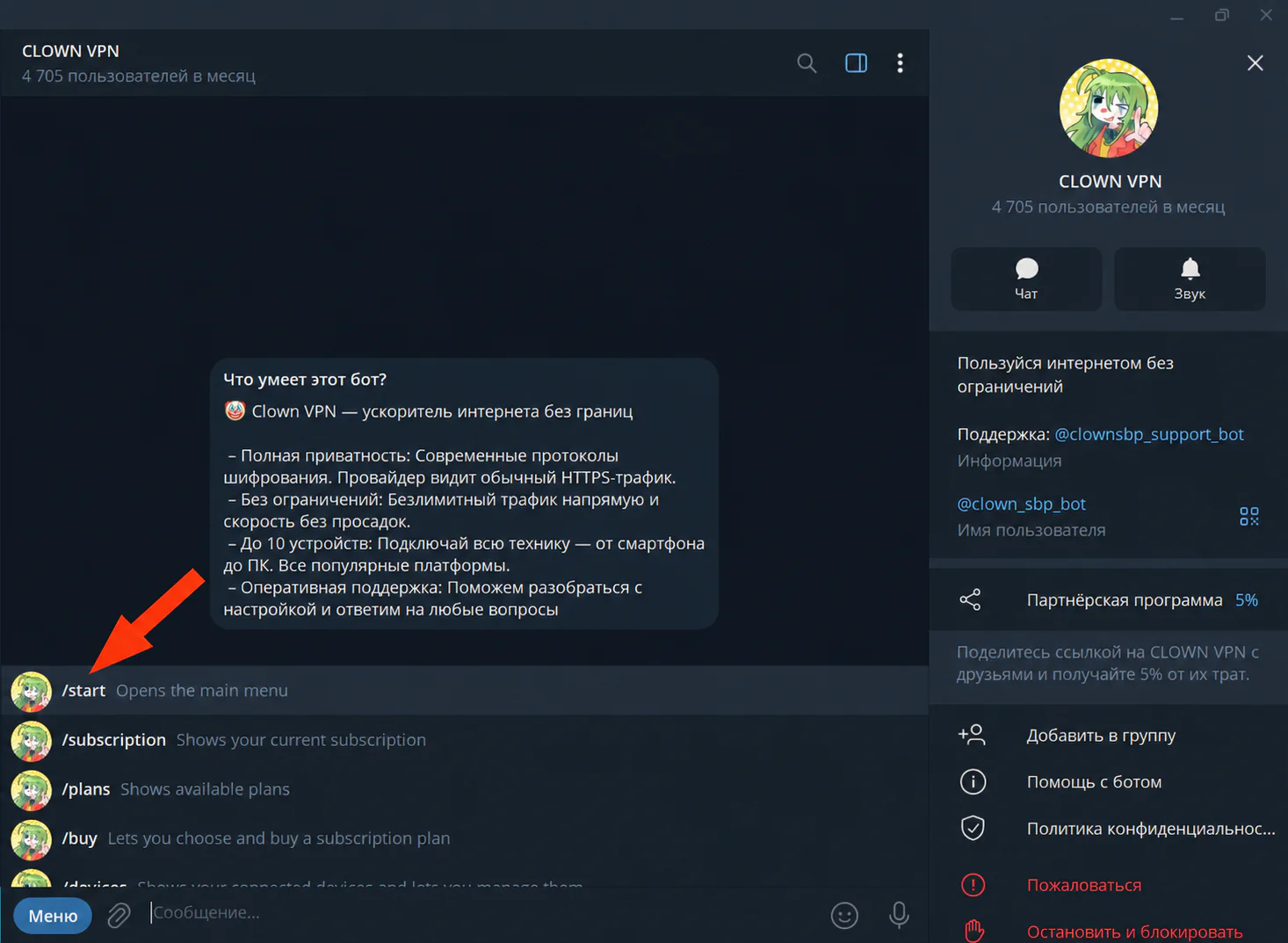
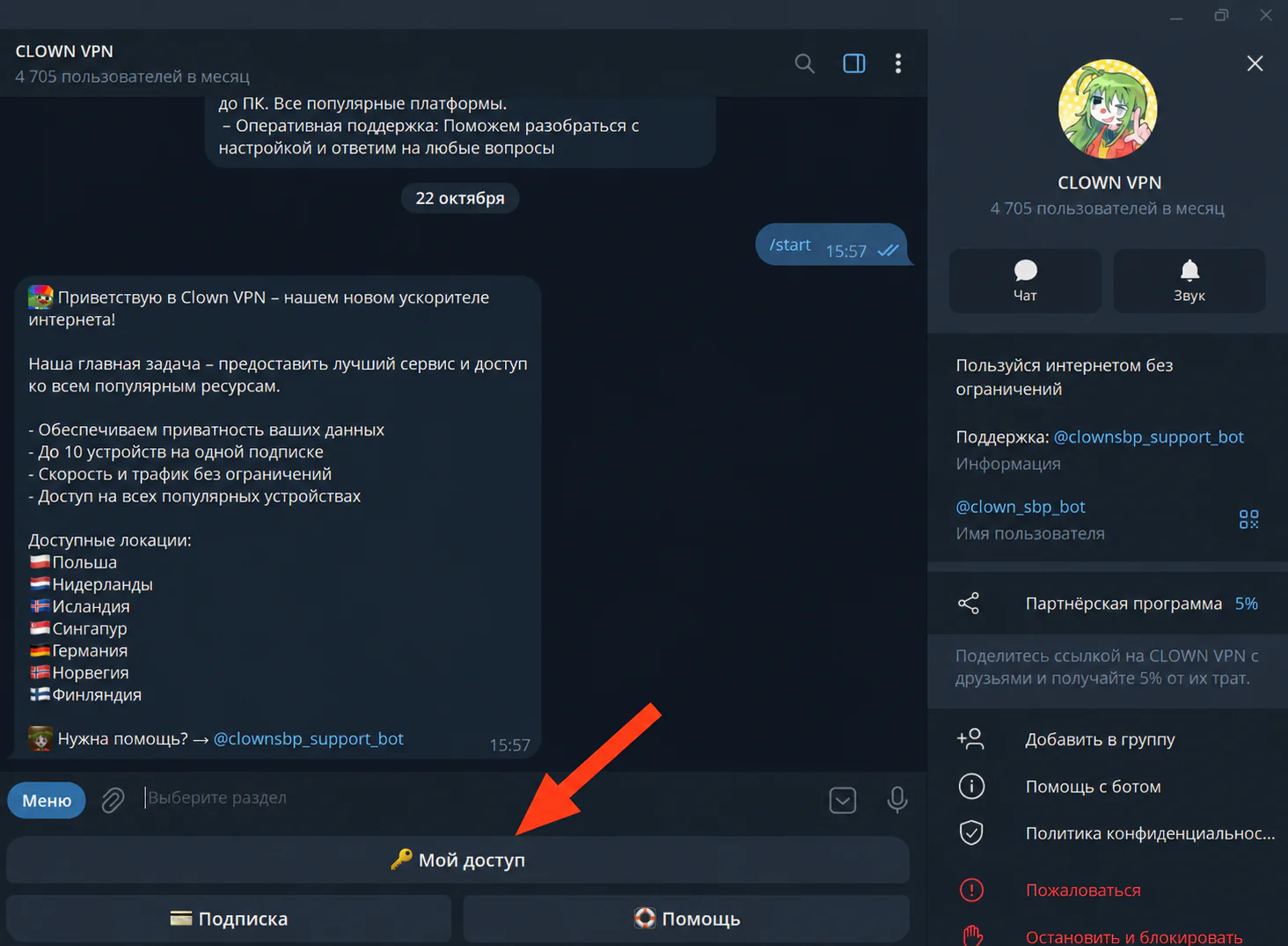
Click to enlarge Go to «🔑 Мой доступ» (My access)
After the /start command, select «🔑 Мой доступ» (My access) in the bot menu.
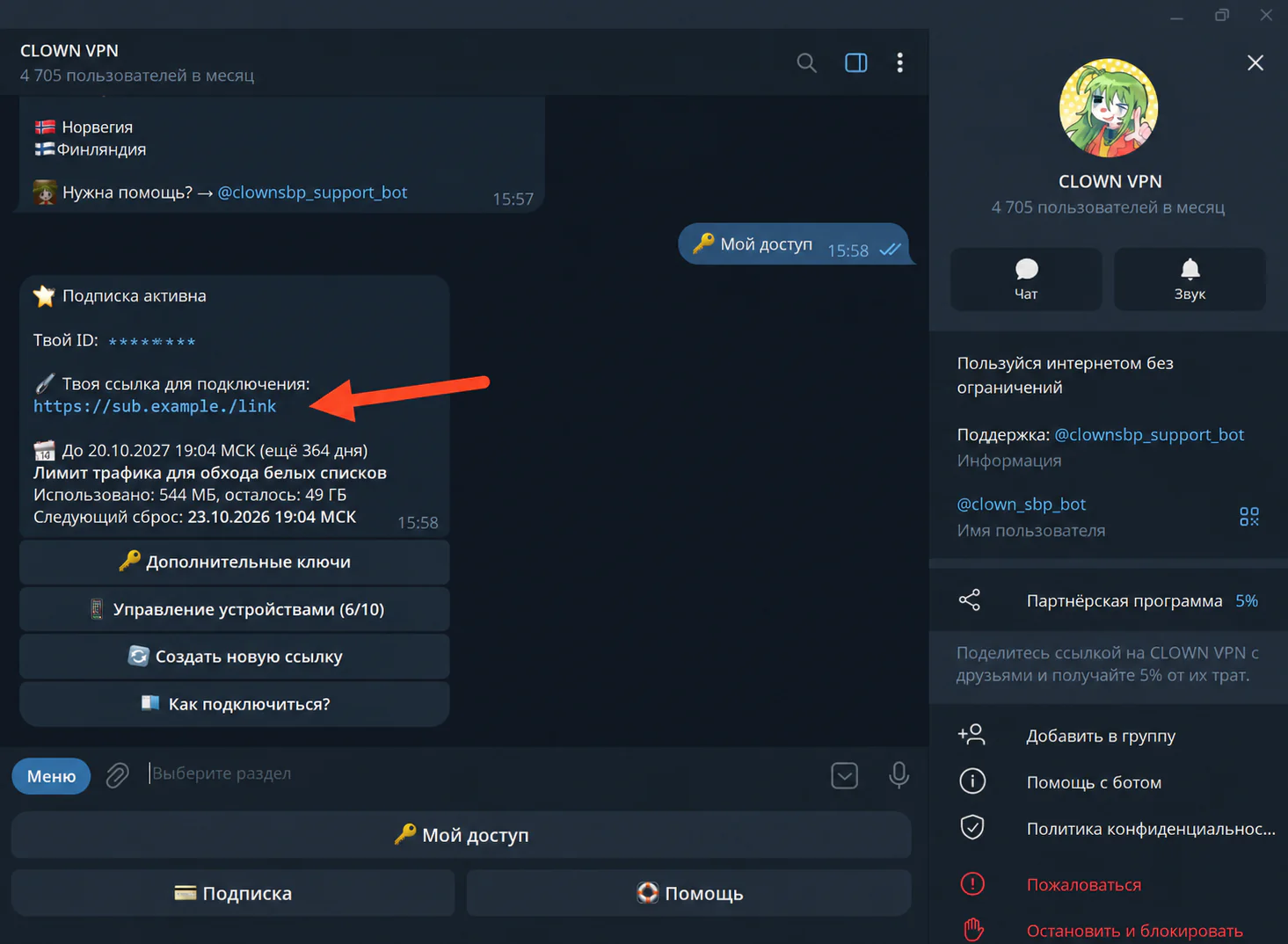
Click to enlarge Copy your connection link
Copy your link in full — you will need it to add the subscription.
Click to enlarge Add the subscription to Happ
Copy the connection link from «🔑 Мой доступ» (My access) in the bot, then paste it into Happ, or open the link directly to import it.
Step 5
The screenshot will appear here
Placeholder for a future screenshot Connect to a server
Choose a server from the list and click the connect button.
Step 6
The screenshot will appear here
Placeholder for a future screenshot
Having trouble connecting?
Update the subscription in the app. If that doesn’t help, contact support and tell us your device, app and internet provider or mobile carrier.
Connect using Throne
If the app is already installed, start from step 2.
Install Throne
Run the CLI installer, which downloads the right package for your distribution and architecture and installs it:
- curl -fsSL https://raw.githubusercontent.com/throneproj/Throne/dev/script/install_linux.py | sudo python3
Debian, Ubuntu, Fedora, RHEL, openSUSE and Arch also have signed package repositories — see the installation guide linked below.
Step 1
The screenshot will appear here
Placeholder for a future screenshot Start the Telegram bot
Open the bot @clown_sbp_bot in Telegram and send the /start command.
Click to enlarge Go to «🔑 Мой доступ» (My access)
After the /start command, select «🔑 Мой доступ» (My access) in the bot menu.
Click to enlarge Copy your connection link
Copy your link in full — you will need it to add the subscription.
Click to enlarge Add a profile to Throne
Copy the connection link from «🔑 Мой доступ» (My access) in the bot, open Throne, then use the “Program” menu to add a profile from the clipboard.
Step 5
The screenshot will appear here
Placeholder for a future screenshot Allow TUN mode
TUN mode needs root privileges. The installer sets this up with capabilities by default, so you only need to confirm the pkexec prompt the first time you enable it; if it fails, enable the SUID option in “Basic Settings” → “Security” instead.
Step 6
The screenshot will appear here
Placeholder for a future screenshot Connect to a server
Choose a server, turn on “Tun Mode” and click the start button.
Step 7
The screenshot will appear here
Placeholder for a future screenshot
Having trouble connecting?
Update the subscription in the app. If that doesn’t help, contact support and tell us your device, app and internet provider or mobile carrier.